Tech Chat | How to Measure and Import Plots into Autosteer Systems?
When configuring an auto-steering system for field operations, defining accurate farm and plot boundaries is essential. Boundaries are typically created either by importing existing SHP files or by driving a tractor along the field edge to record them directly.
However, recording boundaries with machinery can be time-consuming and increase fuel and equipment costs. This blog introduces a more efficient method: using an RTK receiver with SingularPad's Polygon Survey function to measure field boundaries and then import them into PrecisionAg. This workflow ensures centimeter-level accuracy while reducing setup time and operational costs.
Step 1. Measure the Plot Boundary in SingularPad
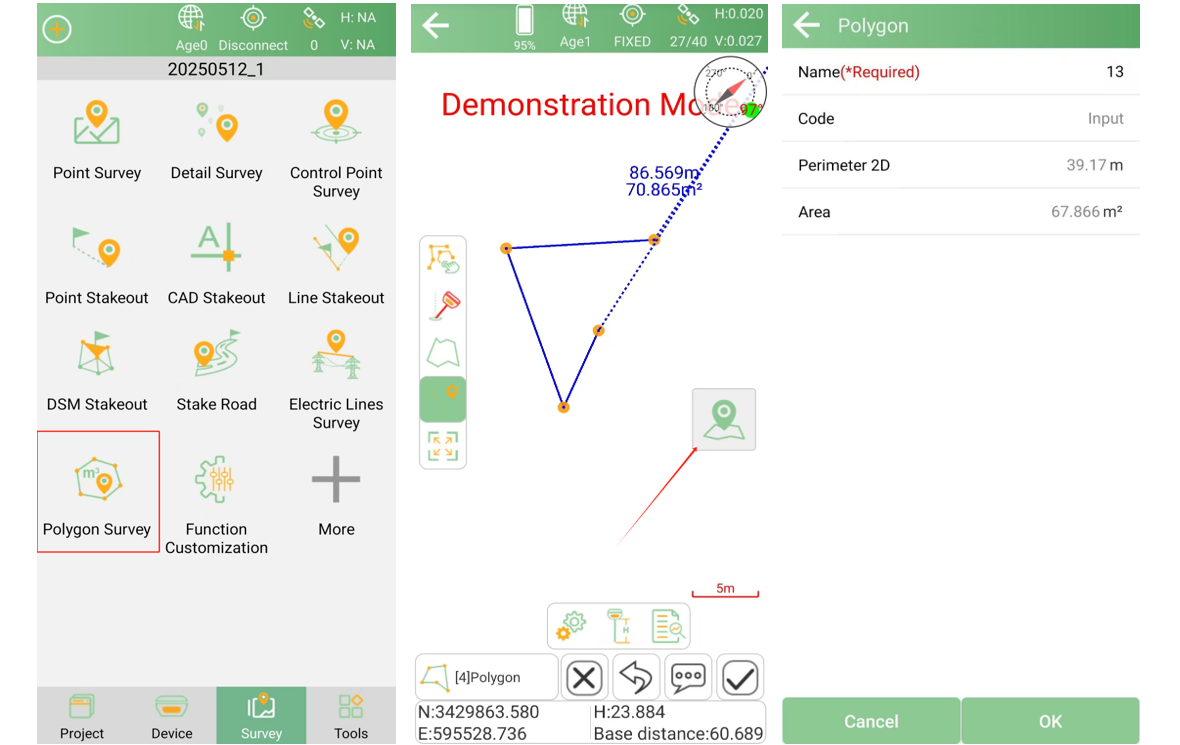
Open SingularPad, connect to your RTK device and obtain a fixed solution. Go to Polygon Survey in the Survey interface.
Walk along the field boundary and measure the farm/plot with the RTK device. It is recommended to start at one corner of the plot for clearer boundary definition
During measurement, the boundary line will be displayed in real time on the screen.
After completing the boundary measurement, tap ✔ to generate the closed polygon.
The software will automatically calculate the area.
Enter a name for the plot and save it.
Step 2. Export the Plot from SingularPad
Click Export to export the polygon file, select the file format as Shape File (NEH Format).
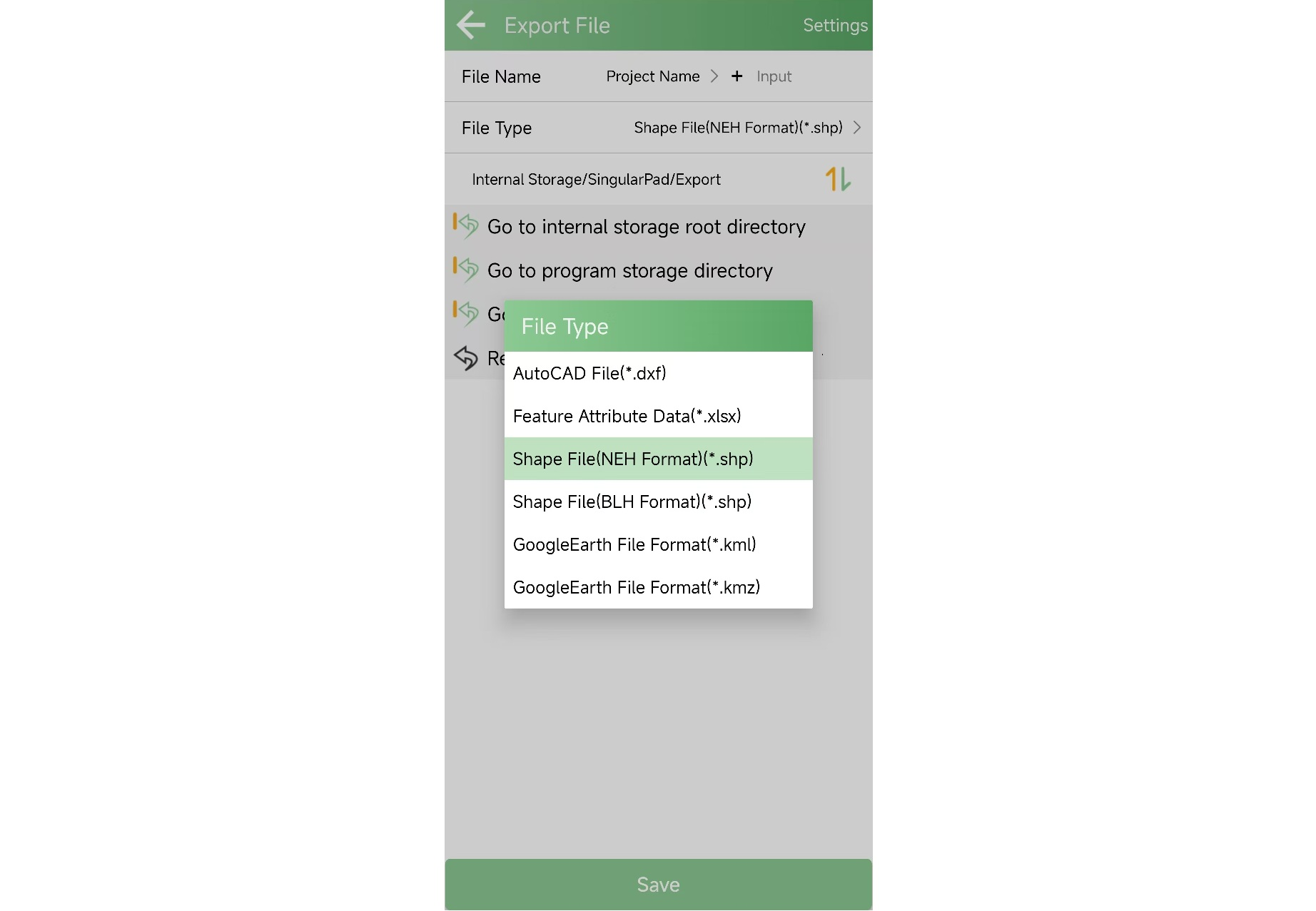
Download the generated plot file via USB drive or cable.
The plot boundary can now be transferred to the agricultural auto-steering system.
Step 3. Import the Plot into PrecisionAg
Insert the USB drive (with plot file inside) into the console tablet.
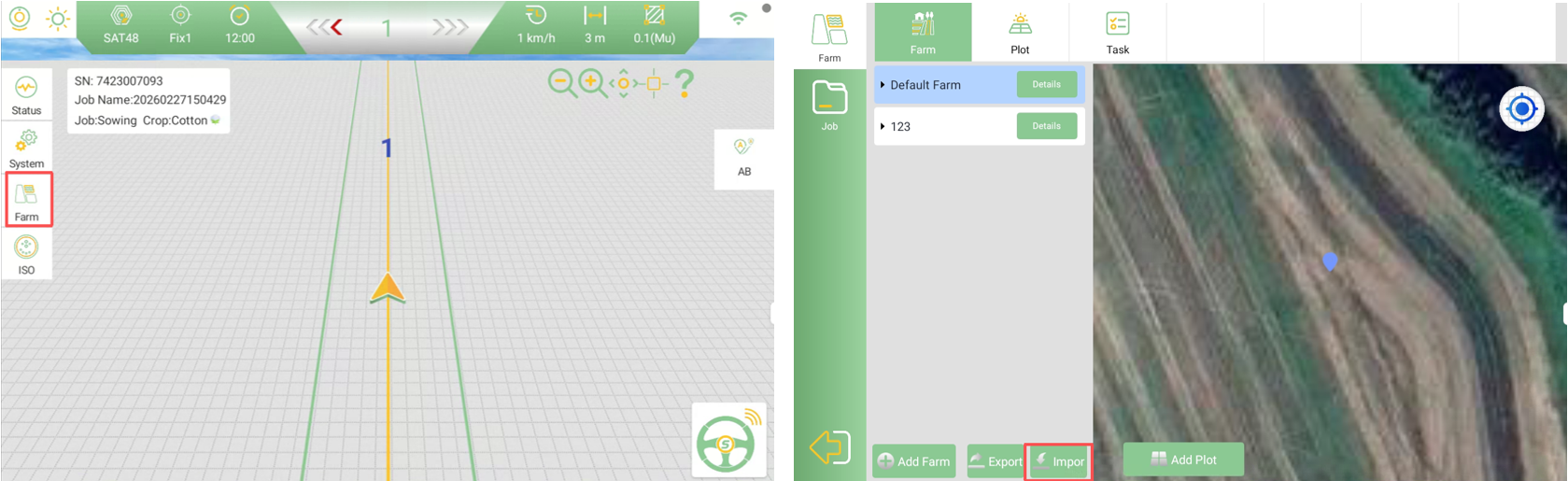
Open the PrecisionAG software, go to Farm and click to import the *.shp file.
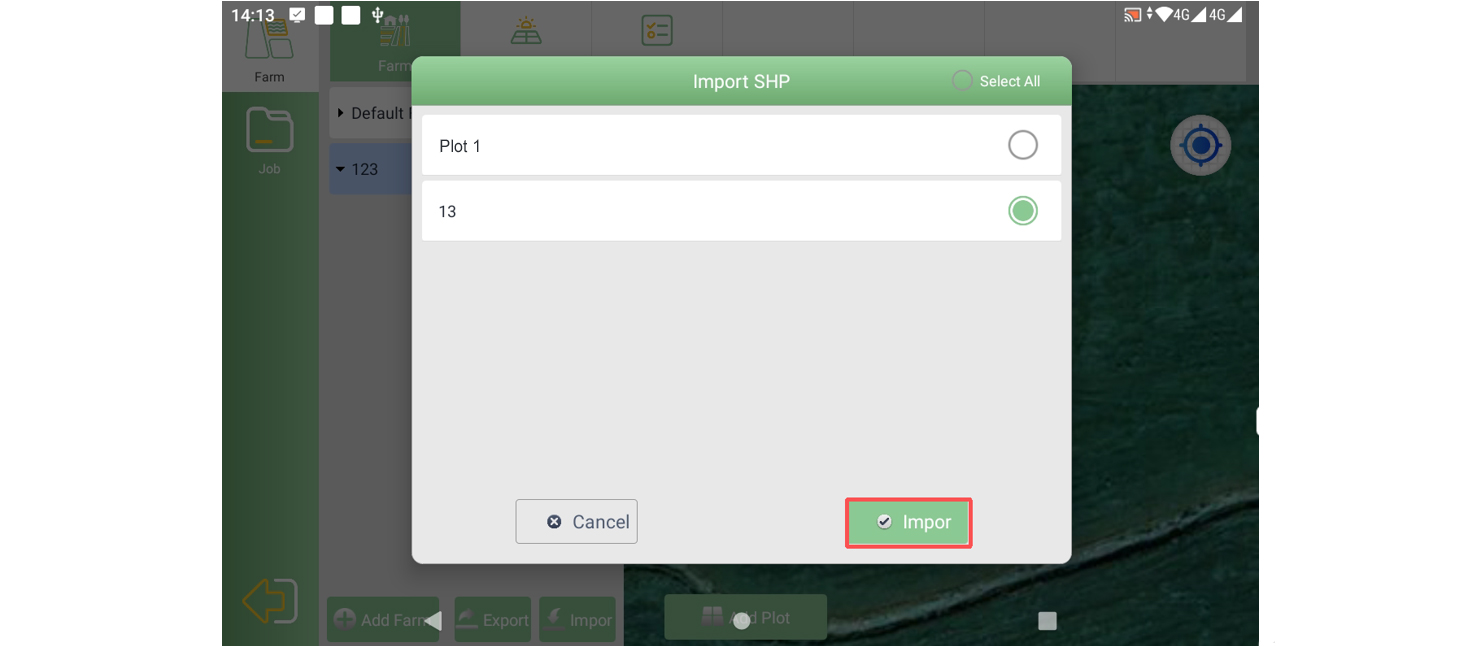
After the plot is successfully imported, you can create and assign AB lines within this plot.
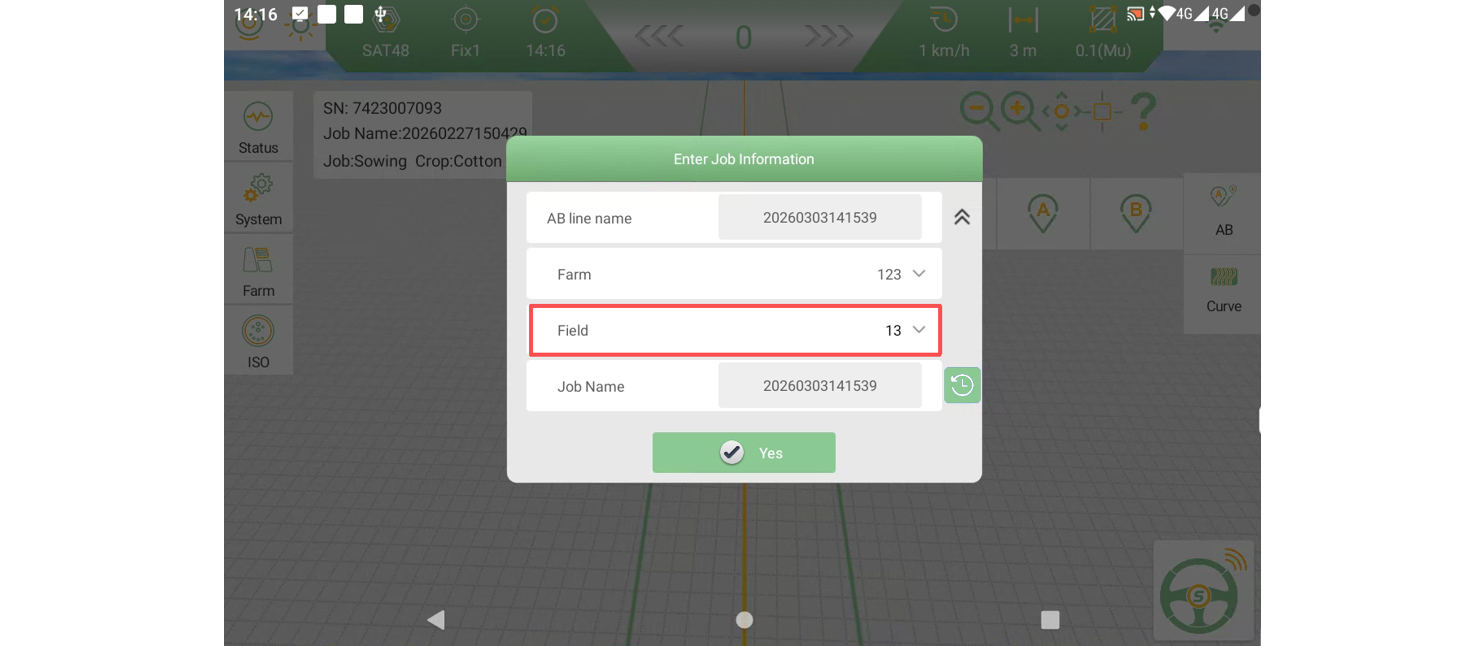
The equipment can then operate normally inside the defined boundary, ensuring accurate guidance and optimized field operations.
This workflow provides a practical and efficient alternative to traditional boundary recording methods in auto-steering applications.
Keywords
Related products