Tech Chat | How to Activate PPP in Your Auto‑Steering System
When using an auto-steering system in the field, sometimes you may encounter areas without network coverage or RTK base. In such cases, you may still want to continue working without interruption. That's where PPP (Precise Point Positioning) comes in.
Although PPP does not offer the same centimeter-level accuracy as RTK, it still provides sufficient decimeter-level precision for most agricultural tasks. In this blog, we'll walk you through the steps to successfully activate PPP in your auto-steering system.
1. Check the Receiver Firmware Version
Before enabling PPP, you need to ensure that your GNSS receiver's board firmware version is R4.10Build18264 or higher.


If your version is lower, please upgrade the board firmware.
Note: The default system upgrade password is 12345678.


After upgrading, confirm that the firmware version meets the requirement. If so, you can proceed to activate PPP.
2. Enable Single Point Mode
Navigate to your GNSS settings and switch to Single Point mode.

3. Select PPP Source
Depending on your location, choose the appropriate PPP correction source:
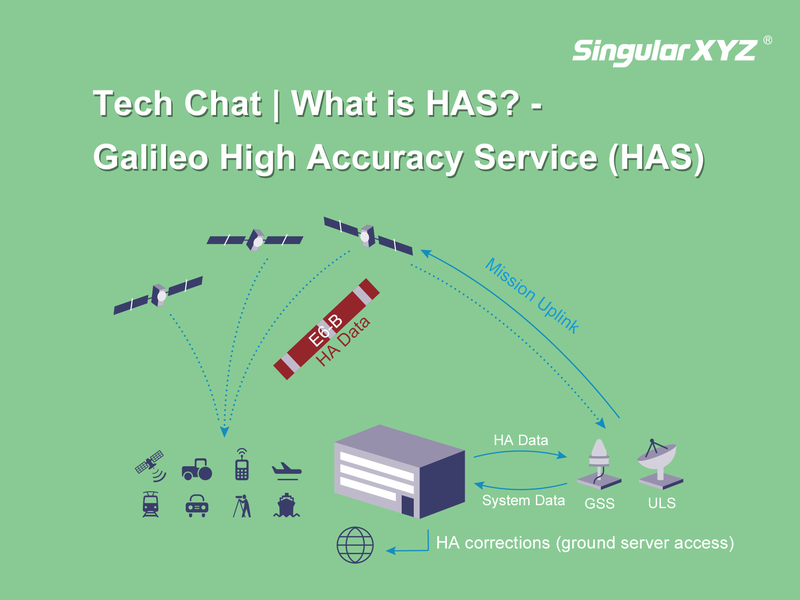
E6-HAS: For regions covered by Galileo High Accuracy Service
PPP (BDS B2b): For regions supported by BeiDou B2b signal

4. Wait for PPP Convergence
Return to the main interface. If everything is configured correctly, the receiver will begin the PPP convergence process.

The below interface indicates that PPP has been successfully activated and converged.

5. Verify Convergence Status via SP Tool
Since the PP convergence process takes a long time, you can check the real-time convergence status through the SP Tool software for further confirmation.
Open SP Tool and select the correct COM port and baud rate.
Click Open to establish communication.
Send the command PPPNAVA 1, then stop the output stream.
Check the response to see whether the system is currently converging.


If the system shows as converging, return to the PrecisionAG software and continue waiting until convergence completes.
By following these steps, you can easily activate PPP in your auto-steering system and maintain your field operations even without network access. Whether you're planting, spraying, or harvesting, PPP provides a reliable alternative when RTK isn't available.
Related products
Related articles