Tech Chat | How to Manually Import Coordinate System Parameters in SingularPad?
In a previous blog post, we introduced how to query coordinate systems and their parameters (Tech Chat | Querying Coordinate Reference Systems for GNSS and Surveying Projects). In practical work, if the required coordinate system is not pre-defined in the template list of SingularPad, it can also be manually defined to ensure correct measurement results.
In this blog, we will use the NAD 1983 Lambert Conformal Conic (Contiguous USA) coordinate system as an example to demonstrate how to import its parameters into SingularPad.
Step 1 Access the Coordinate System Settings
Open SingularPad and go to Project>>> Coordinate System.
Alternatively, you can go to Project>>> Project Managerto create a new project and set the coordinate system during project creation.

Step 2 Prepare Coordinate System Parameters
View the parameters of the NAD 1983 Lambert Conformal Conic(Contiguous USA) coordinate system retrieved from EPSG, as shown in the figure.
We need to import the ellipsoid parameters and projection parameters.

Step 3 Configure Ellipsoid and Projection Parameters
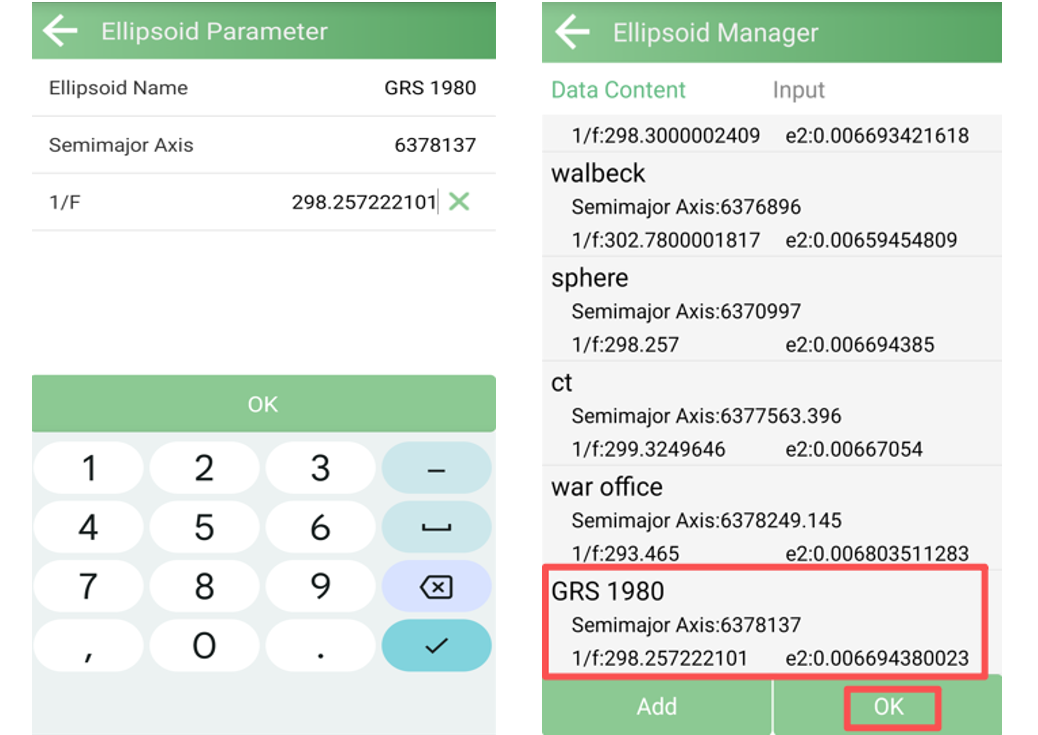
1. Import Ellipsoid Parameters
Go to Ellipsoid Parameter and check whether the required ellipsoid already exists.
If available, select it and click OK
If not, click Add to define it manually
Enter the Ellipsoid Name, Semimajor Axis, and theReciprocal of the Flattening (1/F), and then click OK to save.

2. Import Projection Parameters
Go to Projection Parameter, select a suitable projection model (in this example, Lambert Conic Conformal (2SP))
Enter the following parameters:
False Northing
False Easting
Longitude of Origin
Latitude of Origin
Standard Parallel 1
Standard Parallel 2
Click OKto save the projection settings.
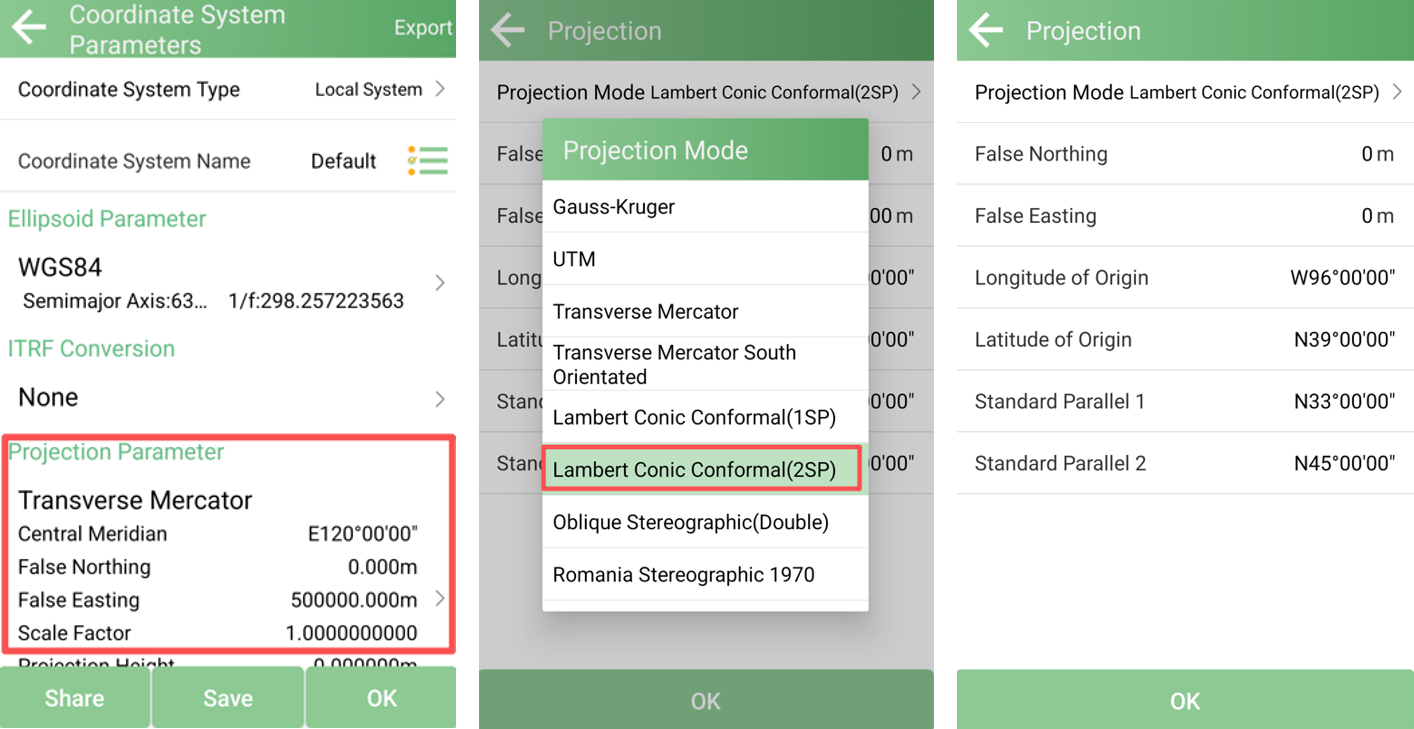
After completing the above steps, return to the Coordinate System Parametersinterface and click OK to apply the coordinate system to your project.

Note:
When entering latitude and longitude, pay attention to the latitude and longitude format you set in the software. You can view this in Project >>> Software Settings. When entering latitude and longitude, you must follow the format you set.
For example, if you set the latitude and longitude format to dd°mm'ss.ssss", and you want to set the latitude and longitude to 43°14′2.95″, you need to enter the value 43.140295to ensure the software recognizes the correct latitude and longitude.
When a required coordinate system is not included in the built-in list, manually importing its parameters provides a practical way to ensure correct project setup. By defining the ellipsoid and projection parameters accurately, users can apply custom or less common coordinate systems directly in SingularPad and proceed with surveying tasks as needed.
Keywords
Related products
Related articles