Tech Chat | How to Output NMEA Data via TCP Protocol from SingularXYZ Receivers
NMEA data is widely used in surveying applications to exchange positioning information between GNSS receivers and external devices or software platforms. Depending on the application requirements, NMEA data can be transmitted through different communication methods, such as serial ports, Bluetooth, or network connections.
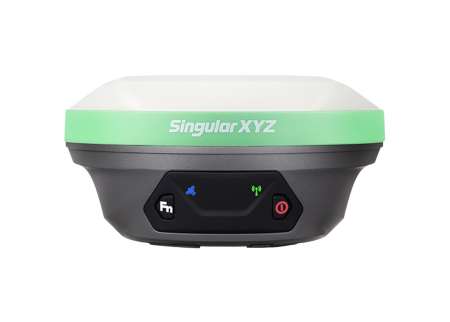
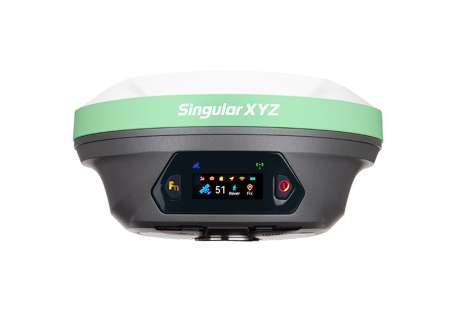
This blog explains how to output NMEA data through a TCP connection, using the X1 GNSS Receiver and SingularPad as an example. The same workflow can also be applied when connecting with other software or systems that support TCP communication.
Step 1. Access the X1 Web Interface
Connect your computer or mobile device to the X1 receiver's Wi-Fi network.
Open a browser and enter 192.168.10.12 to access the X1 web interface. The default username and password are both "admin". After logging in, go to Data Transfer to configure the NMEA output settings.

Step 2. Configure TCP NMEA Output
Click Config to enter the configuration page. Set the parameters as follows:
Mode: Server
Data Type: NMEA-0183
Port: 9090 (or any available port)
Then select the NMEA messages you want to output and click OK to save the settings. Make sure the Startupoption is enabled to activate the data output.

Step 3. Configure TCP Connection in SingularPad
Open SingularPad and go to Communication >> Configuration, set:
Device Manufacturer: Other
Connection Type: TCP Client

Step 4. Connect to the X1 Receiver
Enter the IP address and port information, which should match the settings configured in the X1 web interface.
IP Address: 192.168.10.12
Port: The one you entered in Step 2 earlier.
Click the Connect button to establish the TCP connection.
Note: Before connecting, make sure the controller or mobile device running SingularPad is connected to the X1 Wi-Fi network.

Step 5. Check NMEA Output Data
After the connection is established, return to Communication >> Configuration >> Debug. You can view the received NMEA data in real time and confirm that the output is working correctly.

Conclusion
By configuring TCP output, the X1 can provide NMEA data directly to compatible software platforms or external systems through a network connection.
This method is not limited to SingularPad. Any software or system that supports TCP client connections can use the same configuration method to receive NMEA data from the receiver.
Keywords
Related products