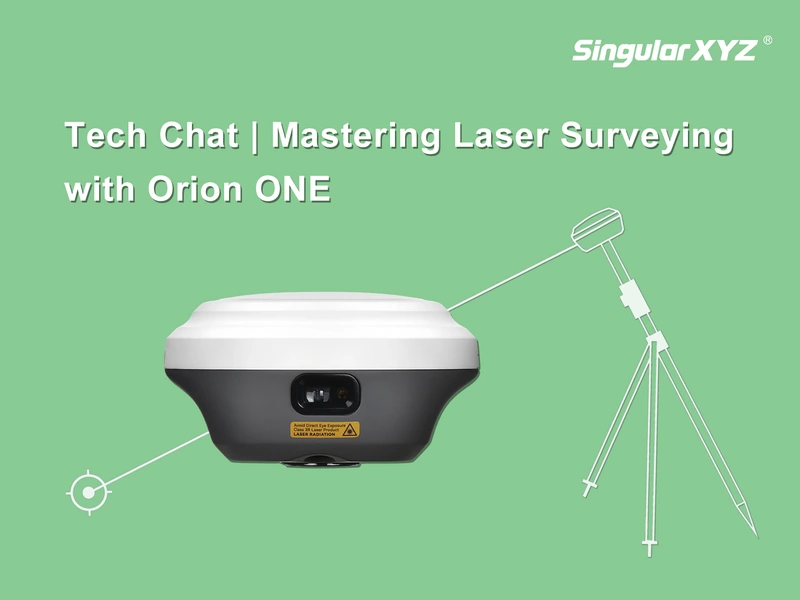
Tech Chat | Mastering Laser Surveying on Horus with Camera‑Aided Targeting
In our previous post, "Tech Chat | Mastering Laser Surveying with Orion ONE", we introduced how Orion ONE performs laser surveying using direct eye-based aiming.
Now, the Horus takes this capability a step further with its camera-assisted laser targeting, designed to overcome the limitations of naked-eye targeting and enhance long-range precision. In this blog, we will introduce how this feature works and how to use it effectively in the field.
1. Pre-Survey Requirements
To ensure accurate laser measurement, confirm the following before starting:
✔ Fixed RTK Solution
The Horus must achieve a Fixed solution to ensure absolute accuracy.
✔ IMU Initialization Completed
The IMU calculates the device's orientation, which is crucial for calculating the laser offset.
✔ Wi-Fi Enabled on the Data Collector
If you want to use camera-assisted aiming, your controller's Wi-Fi must be turned on to receive live video from the Horus.
Once these conditions are met, you're ready to begin laser surveying.
2. How to Perform Laser Surveying with Camera Assistance
Laser surveying is embedded in the standard workflow. Here's the complete process:
Step 1: Open the Survey Interface
Go to Survey → Point Survey in SingularPad.

Step 2: Enable Visual Aiming Assistance
Tap Aim on the right side of the interface, the laser surveying function and the camera live view will be activated simultaneously.

Step 3: Aim at the Target Using the Camera View
The live video lets you clearly see the target, you can zoom in and tilt the Horus to accurately align the laser at the target point.

Step 4: Measure the Point
Once the laser is positioned on the desired target, tap the Survey button to measure and store the point.

3. Reviewing and Managing Laser-Measured Points
All laser survey points are stored in the project and can be reviewed visually. Go to Point Library and you will find all points data, click to check the detailed information.

Photo and Sketch
Each laser measurement includes an associated image.
You can:
View the captured photo showing the laser position at the moment of measurement
Confirm the target visually
Use it for documentation or QA purposes
This makes verification simple and traceable for field teams and clients.

Watch the tutorial video of Horus laser surveying function on our YouTube channel:
https://youtu.be/mmgcGXtCu40?si=bIIU9btTolAqqcT-
Learn more about Horus Visual & Laser RTK:
Horus
Keywords
Related products
Related articles